Your form has been submitted. We'll contact you in 24 hours.
Close
Home/Blog/How does pyproxy online web proxy check if the proxy is working?
How does pyproxy online web proxy check if the proxy is working?
PYPROXY·Oct 21, 2025
When using a web proxy like PYPROXY Online Web Proxy, it’s essential to verify whether the proxy is working correctly. A proxy serves to mask your original IP address and can provide privacy, security, and even access to restricted content. However, there may be instances where the proxy might not function as expected. In this article, we will guide you through various methods to detect whether your PyProxy Online Web Proxy is working effectively. By following these steps, you will be able to ensure that your proxy is operating smoothly and protecting your online activities. This article aims to provide practical and actionable advice for users who want to verify their proxy's performance.
Understanding Web Proxy and Its Purpose
Before diving into the methods of checking if a web proxy is effective, it's important to understand what a proxy is and why it is used.
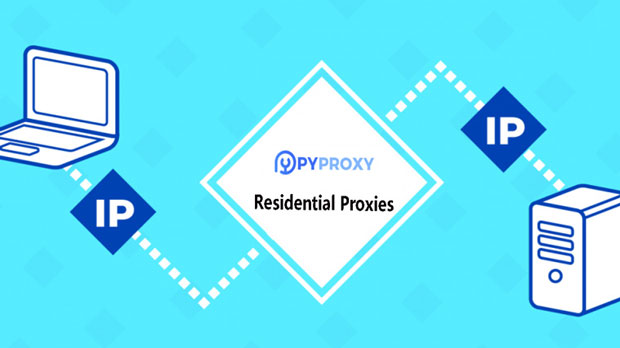
A web proxy is a server that acts as an intermediary between the user's device and the internet. It receives requests from the user, forwards them to the destination website, and then sends back the website's response to the user. This process allows users to browse the web anonymously by masking their original IP address. Proxies are also used to bypass geographic restrictions, filter content, and improve browsing speeds.
Given the privacy and security benefits, ensuring the effectiveness of a proxy is critical for users relying on it for these purposes. PyProxy, in particular, is a popular proxy service that provides a layer of anonymity and security to its users.
Method 1: Checking IP Address
One of the simplest and most effective ways to test if a proxy is working is to check your IP address before and after connecting to the proxy.
1. Check Your IP Address Without the Proxy:
- Before connecting to the proxy, visit any trusted website that displays your IP address. This can usually be found on websites that offer IP lookup services.
2. Connect to the PyProxy Online Web Proxy:
- After connecting to the proxy, revisit the same website to check your IP address again.
3. Compare IP Addresses:
- If the IP address displayed after connecting to the proxy is different from the one shown before, it indicates that the proxy is working correctly and masking your original IP address.
This is a quick and straightforward way to confirm that your proxy is functioning as expected.
Method 2: Checking for DNS Leaks
A DNS leak occurs when your device still sends DNS queries through your ISP’s DNS server rather than through the proxy's secure DNS service. This can expose your browsing activity and defeat the purpose of using a proxy. To check for DNS leaks:
1. Use a DNS Leak Test Tool:
- After connecting to the proxy, use an online DNS leak test tool to check whether your DNS queries are being routed through the proxy or directly through your ISP.
2. Analyze the Results:
- If the test reveals DNS servers associated with your ISP, this indicates a DNS leak, meaning the proxy is not functioning fully to protect your privacy.
3. Fixing DNS Leaks:
- If you find a DNS leak, you can either configure your device to use the proxy’s DNS servers or use third-party DNS services that support DNS leak protection.
Method 3: Testing for WebRTC Leaks
WebRTC (Web Real-Time Communication) is a feature used in web browsers that can potentially reveal your true IP address, even when connected to a proxy. Testing for WebRTC leaks is another way to verify the effectiveness of your PyProxy service.
1. Perform a WebRTC Leak Test:
- There are specific websites that can detect WebRTC leaks. Visit these sites before and after you connect to the proxy.
2. Check for Exposed IP Address:
- If your real IP address appears on the leak test page, it means that the WebRTC feature is revealing your original IP despite the proxy connection.
3. Disable WebRTC or Configure the Proxy:
- If a WebRTC leak is detected, you can disable the WebRTC feature in your browser settings or configure your proxy service to block WebRTC requests.
Method 4: Checking for IP and Geolocation Mismatch
Another method of verifying whether your proxy is working is to check for mismatches between the displayed IP address and your actual location. This method helps determine if the proxy is masking both your IP address and geographic location.
1. Check Your Location with and Without the Proxy:
- Visit a geolocation service that displays the country and city associated with your IP address. Note the location when not connected to the proxy.
2. Connect to the PyProxy Online Web Proxy:
- Revisit the same geolocation service with the proxy active and note the location again.
3. Compare the Results:
- If the location is different from your original location, it indicates that the proxy is functioning correctly, as it is masking both your IP address and geographical location.
This step is especially important for users who want to use proxies for geo-unblocking purposes, such as accessing region-restricted content.
Method 5: Speed and Performance Test
While checking privacy and security features is important, it is also vital to verify that the proxy does not negatively affect your internet speed and performance. A sluggish connection can be a sign that the proxy is not working as efficiently as it should be.
1. Test Speed Without the Proxy:
- Use an online speed test tool to measure your internet speed when not connected to the proxy.
2. Test Speed With the Proxy:
- Perform the same speed test while connected to the PyProxy Online Web Proxy.
3. Compare the Results:
- If the speed drop is significant, it may indicate that the proxy is overburdening your connection or malfunctioning in some way.
A proxy that introduces excessive latency can degrade the browsing experience, which can be frustrating for users.
Method 6: Checking Access to Restricted Content
Finally, one of the core uses of a web proxy is to bypass restrictions and access content that might be otherwise unavailable in your region. To test whether your PyProxy Online Web Proxy is working in this way, try accessing a website or content that is typically blocked in your location.
1. Test Access Without the Proxy:
- Try accessing a website or content that is geographically restricted or blocked in your region.
2. Connect to the Proxy and Test Again:
- After connecting to the proxy, attempt to access the same content or website again.
3. Confirm Access:
- If the content is now accessible, it indicates that the proxy is successfully bypassing the geographical restrictions.
This test is particularly useful for users who rely on proxies to access region-restricted streaming services or websites.
Ensuring that your PyProxy Online Web Proxy is functioning effectively is crucial for maintaining privacy, security, and access to restricted content. By performing simple tests such as checking IP addresses, testing for DNS and WebRTC leaks, verifying geolocation, checking speed, and attempting to access restricted content, you can confirm the proxy’s effectiveness. These steps help ensure that your online activities remain private and secure, and that the proxy serves its intended purpose without any issues. By following these methods, you can maintain a smooth and efficient browsing experience with PyProxy.