10% OFF


Rotating Residential Proxies
90 million IPs worldwide.
Up to 60% OFF
Starts from
$0.60
/GB

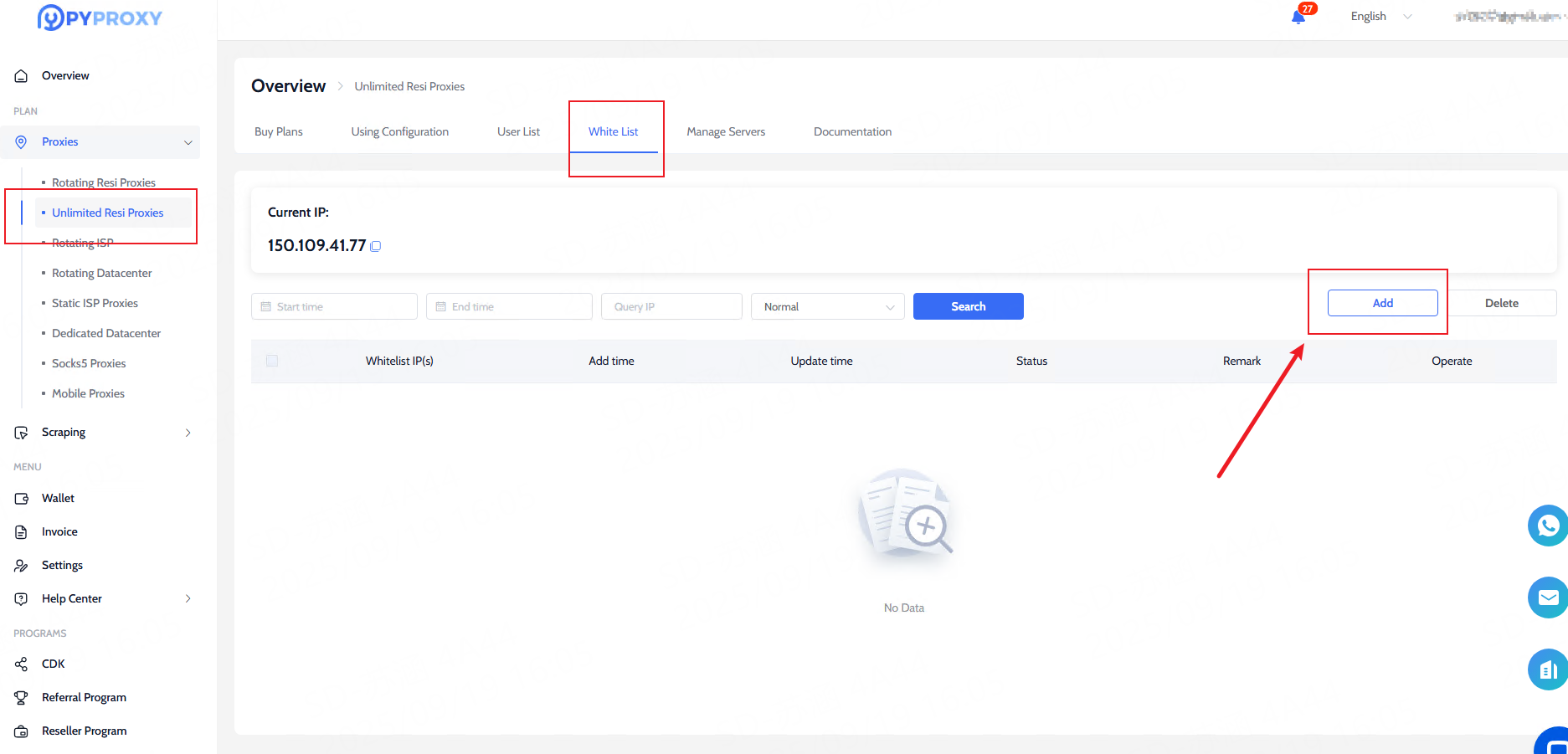
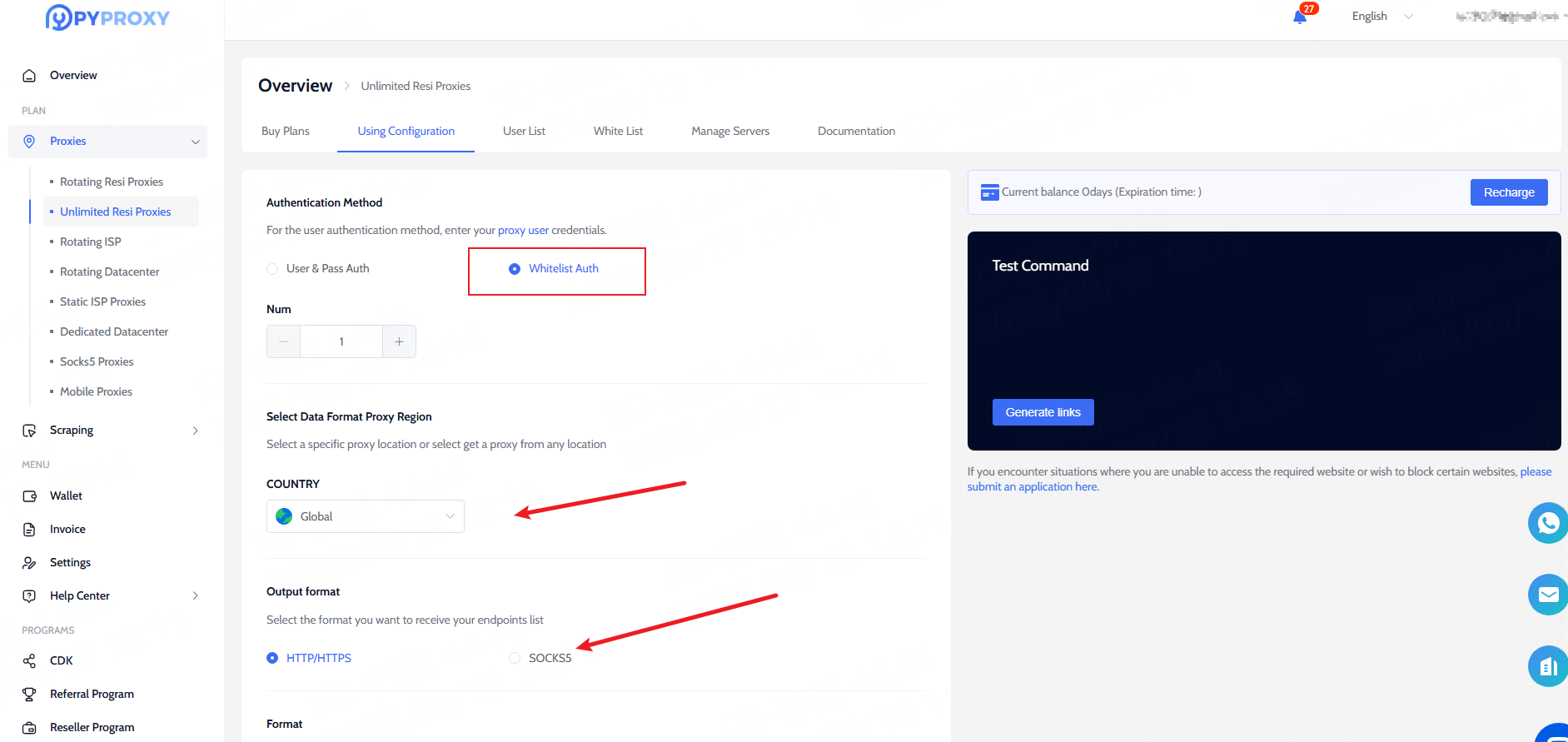
Unlimited Residential Proxies
Unlimited bandwidth on rotating IPs.

Starts from
$2018
/
MO.

Rotating Datacenter proxies
Shared datacenter IPs, large IP pool.
Starts from
$0.66
/GB

Rotating ISP Proxies
Shared ISP Proxies, IP duration max 12 hours.
Starts from
$0.40
/GB

Static ISP Proxies
Dedicated Proxies of long duration.
10% OFF
Starts from
$4.05
/
MO.

Dedicated Datacenter Proxies
Stable and reliable datacenter IPs.
10% OFF
Starts from
$1.98
/IP

Socks5 Proxies
Charged by IP amount.
Starts from
$0.045
/IP

Web Unblocker
Unblock websites instantly.
Starts from
$5.6
/GB

Web Scraper API
A comprehensive full-stack scraping solution for large-scale data collection.

PY Proxy Manager
Proxy generator and manager with more features. Lite and easy to use.
Download


Previous Versions
Find all versions here and learn about the history of updates.


E-commerce
Access valuable e-commerce data using proxies.

Social Media Management
Manage multiple accounts and maintain anonymity.

SEO Monitoring
Track search engine rankings, keywords, and website performance.

Market Research
Gather market intelligence for informed decision-making.

Brand Protection
Safeguard brand reputation and monitor online mentions.

Web Scraping & Crawling
Precisely collect any data you want at scale.